Appearance
Managing Node.js Versions in Herd
While Laravel Herd includes NVM (Node Version Manager) out of the box, it lacks a built-in interface for managing Node.js versions. It does not automatically update Node.js, nor does it notify you when new Long Term Support (LTS) versions are released. You are typically required to use manual NVM commands in the terminal.
To streamline this process, we have created a PowerShell script that automates these tasks:
- Updates your currently installed versions to their latest patch releases.
- Detects new LTS releases and installs them.
- Switches easily between installed versions via a simple menu.
The PowerShell Script
Create a new file named Manage-HerdNode.ps1 in your root projects folder (e.g., C:\sites_laravel\Manage-HerdNode.ps1).
Copy and paste the code below into this file.
Manage-HerdNode.ps1
powershell
<#
.SYNOPSIS
    Automated Node.js Version Manager for Laravel Herd (Windows)
.DESCRIPTION
    1. Detects Herd NVM.
    2. Auto-elevates to Admin.
    3. SMART UPDATES: Checks if latest version is already installed.
    4. NUCLEAR CLEANUP: Uses CMD to force-delete stubborn folders.
    5. FAST MENU: Auto-reloads after switching.
#>

# --- 1. Self-Elevation Logic (Run as Admin) ---
$currentPrincipal = New-Object Security.Principal.WindowsPrincipal([Security.Principal.WindowsIdentity]::GetCurrent())
if (-not $currentPrincipal.IsInRole([Security.Principal.WindowsBuiltInRole]::Administrator)) {
    Write-Host "Requesting Administrator privileges..." -ForegroundColor Yellow
    try {
        Start-Process powershell.exe -ArgumentList "-NoProfile -ExecutionPolicy Bypass -File `"$PSCommandPath`"" -Verb RunAs
        exit
    } catch {
        Write-Error "Failed to elevate. Please run as Admin."
        exit
    }
}

# --- 2. Herd Configuration Detection ---
$NvmPath = $env:NVM_HOME

if ([string]::IsNullOrWhiteSpace($NvmPath) -or -not (Test-Path $NvmPath)) {
    Clear-Host
    Write-Host "Error: NVM_HOME variable not found." -ForegroundColor Red
    Write-Host "Are you sure Laravel Herd is installed?"
    $null = $Host.UI.RawUI.ReadKey("NoEcho,IncludeKeyDown")
    exit
}

$NvmExe = Join-Path $NvmPath "nvm.exe"
$NodeDistUrl = "https://nodejs.org/dist/index.json"

# --- 3. Helper Functions ---

function Get-RemoteNodeVersions {
    Write-Host "Fetching latest Node.js version list from nodejs.org..." -ForegroundColor Cyan
    try {
        $response = Invoke-RestMethod -Uri $NodeDistUrl
        return $response
    } catch {
        Write-Error "Failed to fetch Node.js versions. Check internet connection."
        exit
    }
}

function Get-InstalledVersions {
    $output = & $NvmExe list
    $versions = @()
    $output -split "`n" | ForEach-Object {
        if ($_ -match "(\d+\.\d+\.\d+)") {
            $verStr = $matches[1]
            $isActive = $_.Contains("*")
            $versions += [PSCustomObject]@{
                Version = $verStr
                IsActive = $isActive
            }
        }
    }
    return $versions | Sort-Object { [Version]$_.Version } -Unique
}

# --- 4. Main Logic ---
Clear-Host
Write-Host "=========================================" -ForegroundColor Magenta
Write-Host "    Laravel Herd Node Manager (Win)      " -ForegroundColor Magenta
Write-Host "    Detected NVM at: $NvmPath" -ForegroundColor DarkGray
Write-Host "=========================================" -ForegroundColor Magenta

$remoteVersions = Get-RemoteNodeVersions
$installedObjs = Get-InstalledVersions
$installedStrings = $installedObjs.Version

# --- Step A: Update Installed Versions ---
Write-Host "`n[1/3] Checking installed versions for updates..." -ForegroundColor Yellow

foreach ($verObj in $installedObjs) {
    $ver = $verObj.Version
    $major = $ver.Split('.')[0]
    $isActive = $verObj.IsActive

    $latestForMajor = $remoteVersions | Where-Object { $_.version -like "v${major}.*" } | Select-Object -First 1
    $latestVerClean = $latestForMajor.version -replace "v", ""

    if ($ver -eq $latestVerClean) {
        Write-Host "  (OK) Node v$ver is the latest $major.x version." -ForegroundColor DarkGray
        continue
    }

    if ([Version]$latestVerClean -gt [Version]$ver) {

        # Define clean up logic block to reuse
        $DoCleanup = {
            $cleanup = Read-Host "      >> [Cleanup] Uninstall old version $ver to save space? (y/n)"
            if ($cleanup -eq 'y') {

                # 1. Switch if active
                if ($isActive) {
                    Write-Host "      (!) You are currently using v$ver. Switching to v$latestVerClean first..." -ForegroundColor Cyan
                    & $NvmExe use $latestVerClean
                    Start-Sleep -Seconds 1
                }

                # 2. Try Standard Uninstall
                Write-Host "      Uninstalling $ver..." -ForegroundColor Cyan
                & $NvmExe uninstall $ver

                # 3. Validation & NUCLEAR DELETE
                $folderPath = Join-Path $NvmPath "v$ver"
                if (Test-Path $folderPath) {
                     Write-Host "      (!) NVM failed to remove the folder (Lock or Path issue)." -ForegroundColor Yellow
                     Write-Host "      Attempting nuclear force delete (CMD)..." -ForegroundColor Cyan

                     # Use CMD rmdir which is stronger than PowerShell Remove-Item for locked/system folders
                     $cmdPath = $folderPath -replace "/", "\"
                     cmd /c "rmdir /s /q `"$cmdPath`""

                     if (Test-Path $folderPath) {
                         Write-Host "      [ERROR] Still could not delete: $folderPath" -ForegroundColor Red
                         Write-Host "      Possible cause: A terminal or VS Code is open inside this folder." -ForegroundColor Red
                     } else {
                         Write-Host "      Force delete successful." -ForegroundColor Green
                     }
                }
            }
        }

        if ($installedStrings -contains $latestVerClean) {
            Write-Host "  (i) Found old v$ver. You already have the newer v$latestVerClean installed." -ForegroundColor Yellow
            & $DoCleanup
        }
        else {
            Write-Host "  (!) Update available for Node v${major}: $ver -> $latestVerClean" -ForegroundColor Green
            $confirm = Read-Host "      >> Install version $latestVerClean? (y/n)"

            if ($confirm -eq 'y') {
                Write-Host "      Installing $latestVerClean..." -ForegroundColor Cyan
                & $NvmExe install $latestVerClean
                $installedStrings += $latestVerClean

                Write-Host "      Update successful." -ForegroundColor Green
                & $DoCleanup
            }
        }
    }
}

# --- Step B: Check for Newest LTS ---
Write-Host "`n[2/3] Checking for latest LTS release..." -ForegroundColor Yellow
$latestLTS = $remoteVersions | Where-Object { $_.lts -ne $false } | Select-Object -First 1
$ltsVerClean = $latestLTS.version -replace "v", ""

$finalObjs = Get-InstalledVersions
$finalStrings = $finalObjs.Version

if ($finalStrings -notcontains $ltsVerClean) {
    Write-Host "  (!) The latest LTS ($ltsVerClean - $($latestLTS.lts)) is NOT installed." -ForegroundColor Green
    $confirm = Read-Host "      >> Install latest LTS $ltsVerClean? (y/n)"
    if ($confirm -eq 'y') {
        & $NvmExe install $ltsVerClean
    }
} else {
    Write-Host "  (OK) Latest LTS ($ltsVerClean) is already installed." -ForegroundColor DarkGray
}

Write-Host "`n----------------------------------------"
Write-Host "Updates complete. Entering Menu..."
Start-Sleep -Seconds 1

# --- Step C: Looping Switch Version Menu ---
$stayInMenu = $true

while ($stayInMenu) {
    Clear-Host
    Write-Host "=========================================" -ForegroundColor Magenta
    Write-Host "       Select Active Node Version        " -ForegroundColor Magenta
    Write-Host "=========================================" -ForegroundColor Magenta

    $menuObjs = Get-InstalledVersions

    for ($i = 0; $i -lt $menuObjs.Count; $i++) {
        $v = $menuObjs[$i]
        if ($v.IsActive) {
            Write-Host "  [$i] $($v.Version)  <-- CURRENTLY ACTIVE" -ForegroundColor Green
        } else {
            Write-Host "  [$i] $($v.Version)"
        }
    }

    $selection = Read-Host "`n  >> Enter number to switch (or press Enter to quit)"

    if ([string]::IsNullOrWhiteSpace($selection)) {
        $stayInMenu = $false
        Write-Host "Exiting..." -ForegroundColor DarkGray
        Start-Sleep -Milliseconds 500
    }
    elseif ($selection -match "^\d+$" -and $selection -lt $menuObjs.Count) {
        $target = $menuObjs[$selection].Version

        if ($menuObjs[$selection].IsActive) {
            Write-Host "`n  You are already on version $target." -ForegroundColor Yellow
            Start-Sleep -Seconds 1
        } else {
            Write-Host "`n  Switching to Node v$target..." -ForegroundColor Cyan
            try {
                & $NvmExe use $target
                Write-Host "  SUCCESS! Active version is now:" -ForegroundColor Green
                node -v
                Start-Sleep -Seconds 2
            } catch {
                Write-Error "Could not switch versions."
                Start-Sleep -Seconds 3
            }
        }
    }
    else {
        Write-Host "  Invalid selection." -ForegroundColor Red
        Start-Sleep -Seconds 1
    }
}Execution Methods
You can run this script using a simple batch file or, for a more integrated experience, by adding it to your Windows Terminal profile.
Method 1: Using a Batch File
- Create a file named
Manage-HerdNode.batin the same folder as your.ps1script. - Paste the following code into the file:
batch
@echo off
powershell.exe -ExecutionPolicy Bypass -File "%~dp0Manage-HerdNode.ps1"- Double-click the
Manage-HerdNode.batfile to launch the manager.
Method 2: Windows Terminal Profile
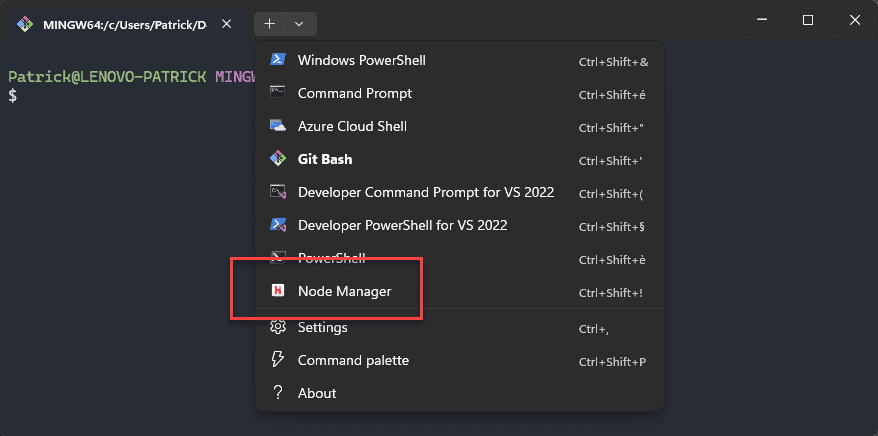
For easy access, you can add the script as a custom profile in Windows Terminal.
- Open Windows Terminal.
- Go to Settings (Click the dropdown arrow
vin the tab bar or pressCtrl+,). - Scroll down the left sidebar and click Add a new profile.
- Select + New empty profile and configure the following:
- Name: Node Manager
- Command line:
powershell.exe -ExecutionPolicy Bypass -File "C:\sites_laravel\Manage-HerdNode.ps1" - Icon: Choose a custom icon (e.g., the Herd logo found at
C:\Program Files\Herd\resources\app.asar.unpacked\resources\icon.png). - Run this profile as Administrator: Enable this checkbox.
Administrator Privileges
Since NVM requires Admin rights to switch Node versions, enabling Run this profile as Administrator ensures the script launches immediately without prompting for self-elevation.
Your Node Manager will now appear in the terminal dropdown menu.
Using the Manager
The script guides you through a three-step process.
Step 1: Update Existing Versions
The script first checks your installed Node versions. If an update is available (e.g., from 22.10.0 to 22.21.1), it will offer to install it. You can optionally delete the old version folder to save disk space. 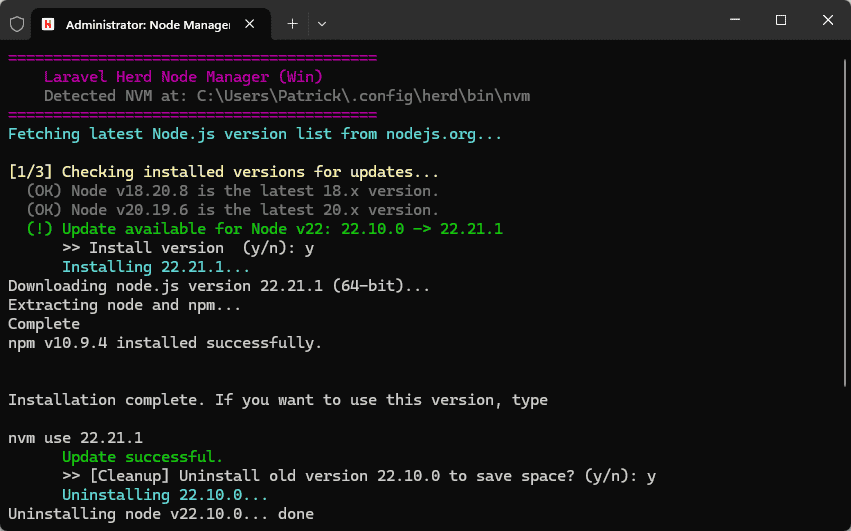
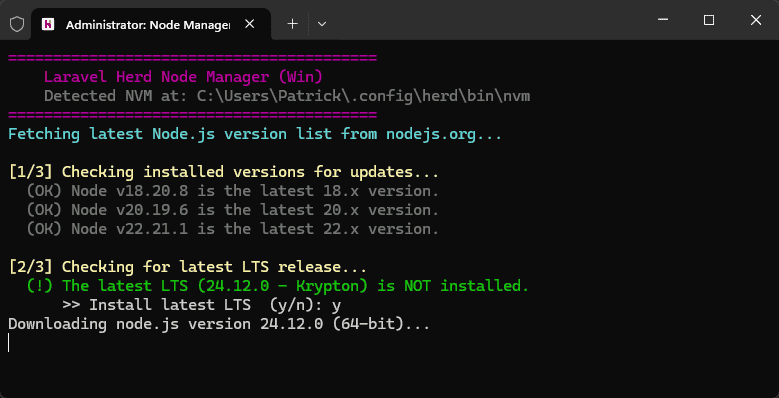
Step 2: Check for Latest LTS
Next, it checks for the latest Long Term Support (LTS) release. If a new LTS version is available that you do not have installed, it will prompt you to download it.
Step 3: Switch Versions
Finally, the script displays a menu of all installed versions. Simply enter the number corresponding to the version you wish to activate. 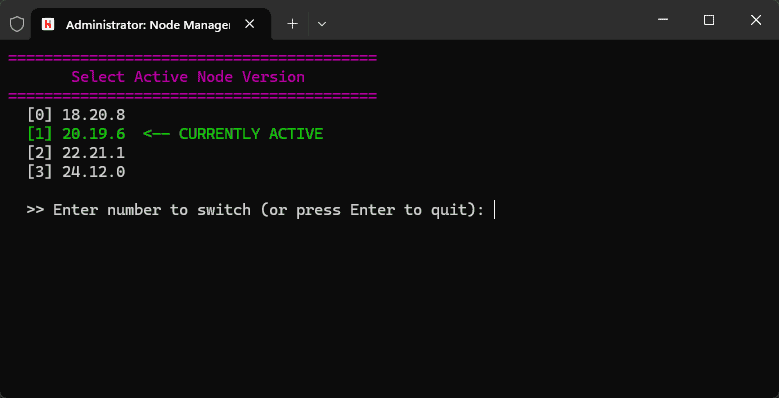
Verification
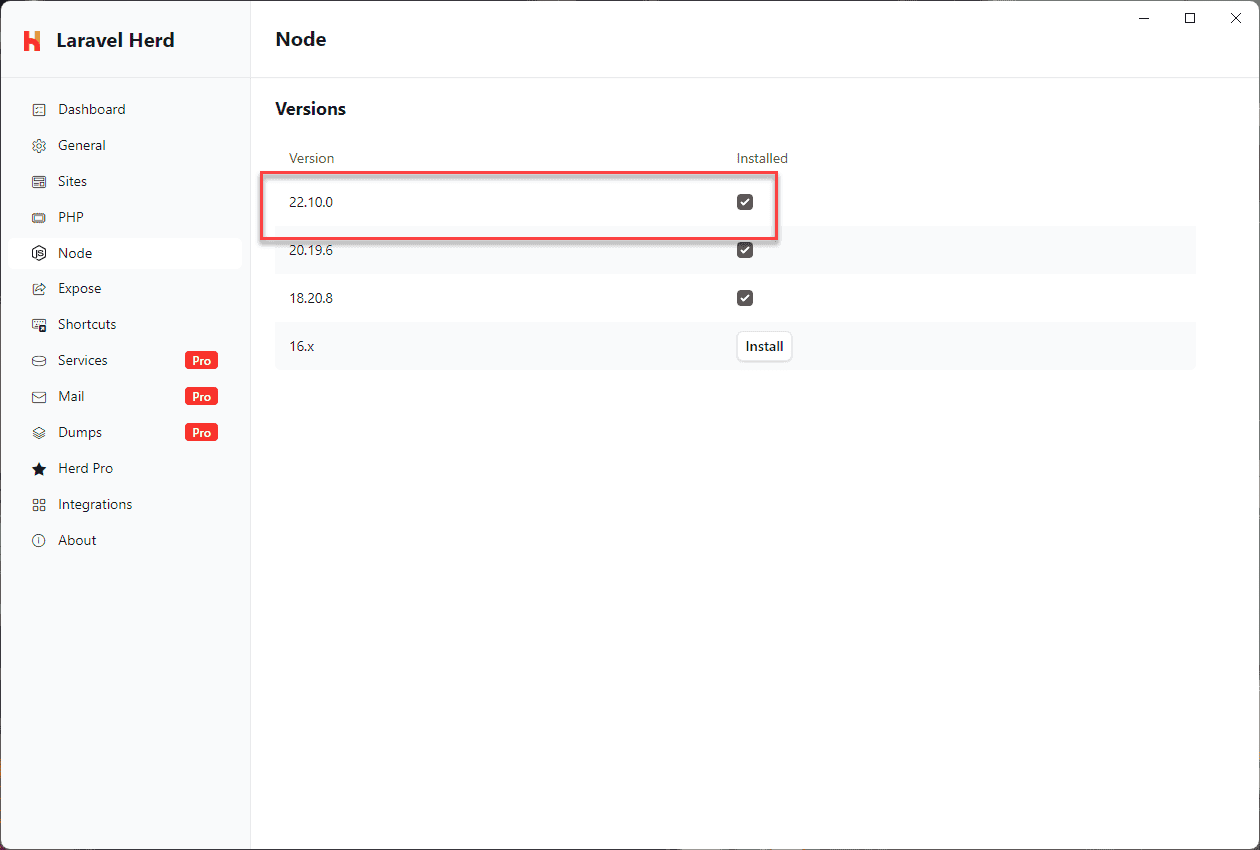
You can verify the changes by opening the Node tab in the Herd settings.
In this example, the system had an outdated version (22.10.0) installed.